
If you are using Windows, you might find that it gets slowed down after a few months, probably as you install more softwares & games. Moreover you will see that it takes a lot of time to startup. That’s actually because many of the apps gets into your startup process and loads automatically everytime you start your PC. Most of the softwares that stucks there are completely useless in startup so you must remove them from the startup process, so as to load your startup process faster.
You can stop access to certain apps using the Microsoft Configuration Tool. Here is how to boost up your startup process using the MSConfig tool :
How To Disable Startup Applications In Windows
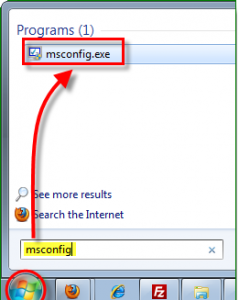
1. Click the Start Menu, type in the search box msconfig and Press Enter & then click the msconfig.exe program link.
2. In the System Configuration tool (that opens up), Click Startup tab and Uncheck the boxes next to the programs that you would like to prevent from starting when Windows starts.
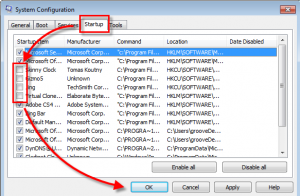
3. Click OK to save changes when you are done.
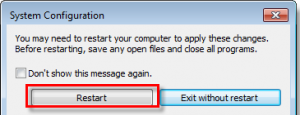
4. Now restart Windows and now the programs you selected will no longer automatically start up.
Now its done. Enjoy your new improved high speed Windows.
Hope you liked the post.


Article By The Guy behind Vast9
The guy behind Vast9 is the real deal. He created this blog years ago when no one really knew anything about online marketing and helped hundreds of people succeed online. Eventually, he abandoned this blog because he started making a lot more money through other bigger projects. Peace.
Join My Awesome Newsletter !!
Get all the tips, tricks and suggestions directly to your inbox and thats too for free..!!